Certificate Manager
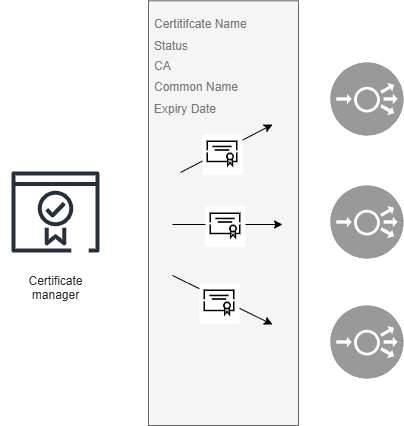
Certificate Manager is a centralized dashboard for managing SSL/TLS certificates across cloud infrastructure.
Overview
Use Certificate Manager to import certificates issued by a Certificate Authority, associate certificates with cloud resources such as load balancers, monitor expiration, and update certificates after renewal.
Key Features
| Feature | Description |
|---|---|
| Certificate inventory | Shows imported certificates and their status. |
| Resource association | Associates certificates with resources such as load balancers. |
| Certificate import | Supports third-party CA certificates, trusted CA certificates, and self-signed certificates. |
| Renewal update | Lets you update certificates after external renewal. |
| Expiration visibility | Shows certificate expiration status. |
Getting Started
- Log in to Cloud Portal.
- Open Security.
- Open Certificate Manager.
Managing Certificates
By clicking on any certificate, you can manage and view related certificate information through dedicated tabs:
View the certificate's general information and key metadata.
View, associate, or change the certificate assigned to Load Balancers.
View, associate, or change the certificate assigned to a CDN.
View the associated VM and Load Balancer firewall rules using this certificate.
Track all actions and changes performed on the certificate.
The certificate inventory includes:
| Field | Description |
|---|---|
| Certificate Name | Certificate name. |
| Status | Valid, Expiring Soon, or Expired. |
| Associated Resources | Resources using the certificate. |
| Expiration Date | Certificate expiration date. |
You can filter and sort certificates by status or association.
Adding a Certificate
Click Add Certificate and choose one of the supported methods.
| Method | Description |
|---|---|
| Add PFX Certificate | Upload a .pfx file that contains both the certificate and private key. A password is required. |
| Add Certificate using Private Key | Import an existing certificate with its private key. |
| Generate CSR and Import Certificate | Generate a Certificate Signing Request before importing the certificate. Use Save CSR for later if the signed certificate is not ready yet. |
| Add Certificate Using Saved CSR | Import a certificate using a CSR saved earlier. |
Then fill in:
- Business Group.
- Certificate Name.
- Description.
- Certificate Signing Request information, if applicable.
- Certificate key chain information.
Click Save to add the certificate.
Warning
Private keys are securely stored and are not exposed after the certificate is added.
Monitoring Expiration
| Status | Meaning |
|---|---|
| Active | Certificate is valid and not nearing expiration. |
| Expiring Soon | Certificate has less than three months before expiration. |
| Expired | Certificate is no longer valid. |
Certificate Manager does not automatically renew certificates. Renew certificates externally with your Certificate Authority, then update the certificate in Certificate Manager.
Updating a Certificate
After renewing a certificate with the Certificate Authority:
- Import the updated certificate into Certificate Manager.
- Open the action menu for the target certificate.
- Click Manage.
- Disassociate the existing certificate.
- Associate the new certificate.
- Save the changes.
Best Practices
- Keep external renewal reminders at least 90 days before expiration.
- Periodically review certificates for expiration and relevance.
- Include the full certificate chain during import or update.
- Disassociate and delete unused certificates to keep inventory clean.